REST API
Infinite scroll with the WordPress REST API and Ajax Load More
The REST API add-on will enable compatibility between Ajax Load More and the WordPress REST API.
Easily access your website data (as JSON) through an HTTP REST API and display the results using the beauty of infinite scrolling with Ajax Load More.
Add-on Details
Learn more about the REST API add-on.

REST API
Infinite scroll with the WordPress REST API and Ajax Load More.
How It Works
The REST API add-on works by routing the standard Ajax Load More admin-ajax.php requests through to API endpoints for data retrieval. The data is returned as JSON, then parsed and displayed using Underscore.js styled templates on the front-end of your website.
Using a simple GET request, a JavaScript Repeater Template and a custom endpoint (/wp-json/ajaxloadmore/posts) developed specifically for Ajax Load More, users are able to access website data and infinite scroll the results using the WP REST API.
WordPress 4.7+ or the WP REST API v2 must be installed and activated for use with this add-on.
API Endpoints
The REST API add-on comes pre-packaged with a /posts custom endpoint developed to integrate seamlessly with all currently available Ajax Load More Shortcode Parameters – this means you can build your Ajax Load More query as usual and the custom /posts endpoint will handle the display for you without the need for any endpoint development.
Custom Endpoints
Custom REST API endpoints will provide Ajax Load More users the ability to create custom database queries and modify the data returned from these queries without being confined to a set of Shortcode Parameters.
Endpoints can be added for use with Ajax Load More and other applications by simply adding the routes and endpoints directly to the functions.php file in your current theme directory. Once endpoints have been added to your theme, you can go ahead instruct Ajax Load More to start referencing them by updating the restapi_base, restapi_namespace and restapi_endpoint in your shortcode.
Example Endpoint
The following example of a custom route and endpoint will simply grab the latest portfolio custom post type and order the return data by date, desc.
<?php
/*
* Custom WP REST API Routes
* http://v2.wp-api.org/extending/adding/
*/
add_action( 'rest_api_init', function () {
$my_namespace = 'my_custom_namespace';
$my_endpoint = '/posts';
register_rest_route( $my_namespace, $my_endpoint, array(
'methods' => 'GET',
'callback' => 'my_get_posts_function',
));
});
/*
* Custom /posts endpoint for my_custom_namespace
*
*
*
* @param array $data Options for the function.
* @return json object of post data.
*/
function my_get_posts_function( $data ) {
$response = array();
/* Defaults */
$page = $data['page']; // get the current page from ALM [** REQUIRED **]
$posts_per_page = !empty($data['posts_per_page']) ? $data['posts_per_page'] : 5; // get the posts_per_page from ALM
/* Query Arguments */
$args = array(
'posts_per_page' => $posts_per_page, // REQUIRED
'offset' => $data['offset'] + $page * $posts_per_page, // REQUIRED
'post_type' => 'portfolio',
'orderby' => 'date',
'order' => 'DESC',
'post_status' => 'publish',
);
/* Run WP_Query() */
$posts = new WP_Query( $args );
// Create ALM Template Vars [https://ajaxloadmore.com/plugins/ajax-load-more/docs/variables/]
$alm_item = $page * $posts_per_page;
$alm_found_posts = $posts->found_posts;
$alm_current = 0;
while ( $posts->have_posts() ) : $posts->the_post();
$alm_current++;
// Get post thumbnail
$thumbnail_id = get_post_thumbnail_id();
$thumbnail = '';
if($thumbnail_id){
$thumbnail_arr = wp_get_attachment_image_src($thumbnail_id, 'alm-thumbnail', true);
$thumbnail = $thumbnail_arr[0];
}
// Build $data JSON object
$data = array(
'alm_page' => $page + 1,
'alm_item' => ($alm_item++) + 1,
'alm_current' => $alm_current,
'alm_found_posts' => $alm_found_posts,
'date' => get_the_time("F d, Y"),
'link' => get_permalink(),
'post_title' => get_the_title(),
'thumbnail' => $thumbnail,
);
$content = get_the_content(); // Content
$data['post_content'] = apply_filters('the_content', get_the_content()); // add 'post_content' to returned json
$response[] = $data;
endwhile; wp_reset_query();
if (empty($response)) return null;
return $response; // Return data
}
NOTE: It’s important to always keep the $page and $posts_per_page parameters when developing a custom endpoint – these are required for Ajax Load More to correctly offset each database query.
Templates
Repeater Templates created for use with Ajax Load More and the REST API add-on are required to be developed using wp.template, which is a JavaScript templating syntax very similar to Underscore.js.
The REST API add-on requires templates to be written in JavaScript as the data returned from API requests will be parsed and displayed on the client side, where standard Ajax Load More admin-ajax.php requests are parsed on the server and returned to the client as HTML for display.
Wrapping Templates
JavaScript templates are always defined between a script block with a type=’text/html’ and must also contain a unique id (tmpl-[template-name]) for referencing the correct template in the DOM.
<script type="text/html" id="tmpl-alm-template">
   <!-- Your JavaScript template goes here -->
</script>
Example JavaScript (Repeater) Template
The following example transforms the default Ajax Load More PHP/HTML based template into a JavaScript template – this template will be repeated for each result returned from the API endpoint.
<script type="text/html" id="tmpl-alm-template">
   <li <# if(!data.thumbnail){ #> class="no-img" <# } #>>
      <# if(data.thumbnail){ #>
    	  <a href="{{{data.link}}}"><img src="{{{data.thumbnail}}}" alt="{{{data.thumbnail_alt}}}" /></a>
      <# } #>
      <h3><a href="{{{data.link}}}">{{{ data.post_title }}}</a></h1></h3>
      <p class="entry-meta">{{{ data.date }}}</p>
      <p>{{{ data.post_excerpt }}}</p>
   </li>
</script>
You will notice that the only real differences between standard PHP based templates and a JavaScript templates are the opening and closing script block and the {{ data.var }} template tags, which is a WordPress-specific interpolation syntax that’s heavily inspired by Mustache templating.
Before you start templating you’ll want to get familiar with the following templates tags:
- {{ data.var }} – used for escaped data.
- {{{ data.var }}} – used for raw data (not escaped).
- <# if() #> – evaluate any JavaScript code.
NOTE: As seen in the example above, all data returned by the REST API add-on will be accessed in your templates via the data variable. e.g. {{{ data.post_title }}}
Need Some More Help?
We’ve compiled a list of resources for further reading on developing with wp.template:
- Official WordPress Codex for wp.template
- wp.template for front end templating in WordPress – by Luke Woodward
- Intro to Underscore.js templates in WordPress – by Justin Tadlock
- WordPress underscore template – by Jose M Castaneda
Shortcode Parameters
Use the following shortcode parameters to initiate the REST API and Ajax Load More.
| restapi | Enable the WordPress REST API. (true/false) Default = ‘false’ |
|---|---|
| restapi_base | The base URL to your installation of the REST API. Default = ‘/wp-json’ |
| restapi_namespace | Enter the custom namespace for this Ajax Load More query. Default = ‘ajaxloadmore’ |
| restapi_endpoint | Enter your custom endpoint for this Ajax Load More query. Default = ‘posts’ |
| restapi_template_id | Enter the ID of your javascript template. |
| restapi_debug | Enable debugging (console.log) of REST API responses in the browser console. Default = ‘false’ |
Shortcode Builder
The following screenshot illustrates the process of building a REST API shortcode using the Ajax Load More shortcode builder.
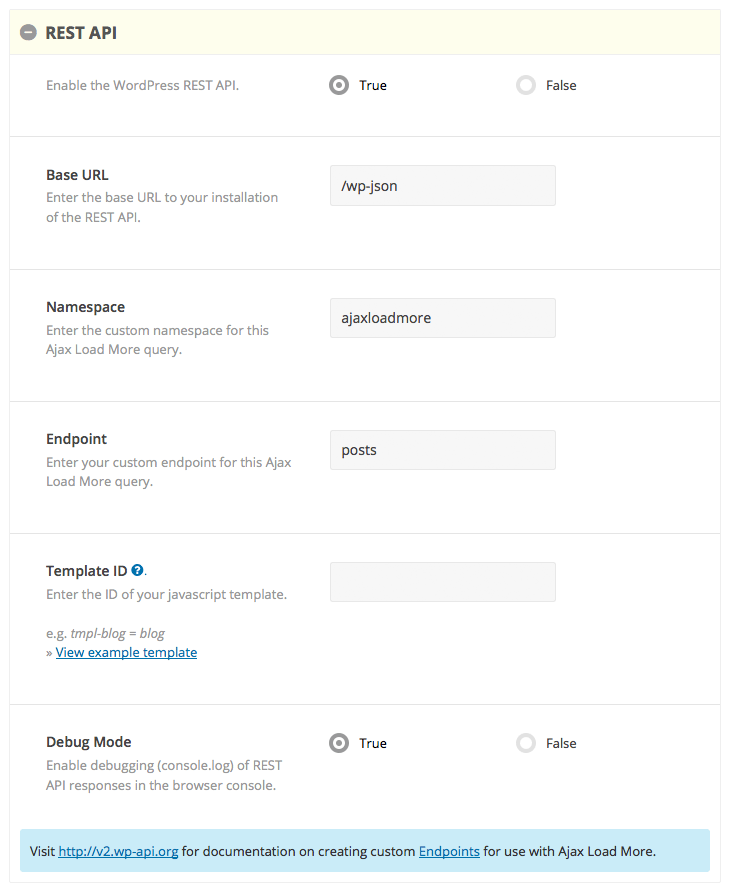
Note: Ajax Load More references restapi_template_id while looping and displaying data. You must still select a repeater template for each instance of Ajax Load More.
Example Shortcode
[ajax_load_more repeater="template_5" restapi="true" restapi_base="/wp-json" restapi_namespace="ajaxloadmore" restapi_endpoint="posts" restapi_template_id="alm-template" restapi_debug="true" post_type="post"]
Frequently Asked Questions
Below are common questions regarding the REST API add-on. If you have a question and don’t see an answer here, please visit the support page and submit your request.
Installation
Upon purchase of this add-on you will receive a confirmation/purchase receipt email. Your receipt will contain a direct link for downloading your copy of Ajax Load More: REST API and a license key.
After downloading the add-on, upload the unzipped files to your /wp-content/plugins/ directory or visit your plugins dashboard and upload the downloaded .zip under Add New.
License Activation
To activate your add-on and receive updates directly in your WordPress plugins dashboard users are required to enter the license key that was included with their purchase receipt.
To activate a license key:
- Visit the Licenses section within the Ajax Load More plugin.
- Enter the product key and click Activate License.
- If the status indicator turns green your add-on has been successfully activated (example below).
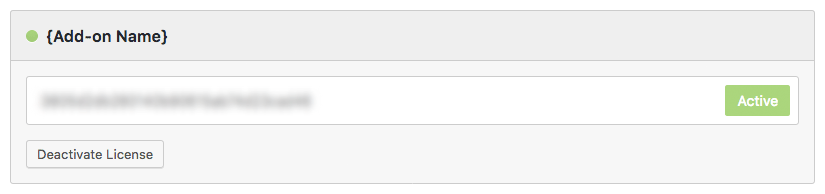
If you did not receive a confirmation email containing your license key, please check your spam/junk folder. If you still cannot locate the email, contact me at darren [at] connekthq.com or use the Product Support form.
Installation
Upon purchase of this add-on you will receive a confirmation/purchase receipt email. Your receipt will contain a direct link for downloading your copy of Ajax Load More: REST API and a license key.
After downloading the add-on, upload the unzipped files to your /wp-content/plugins/ directory or visit your plugins dashboard and upload the downloaded .zip under Add New.
License Activation
To activate your add-on and receive updates directly in your WordPress plugins dashboard users are required to enter the license key that was included with their purchase receipt.
To activate a license key:
- Visit the Licenses section within the Ajax Load More plugin.
- Enter the product key and click Activate License.
- If the status indicator turns green your add-on has been successfully activated (example below).
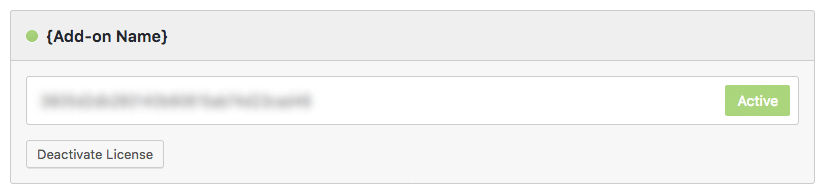
If you did not receive a confirmation email containing your license key, please check your spam/junk folder. If you still cannot locate the email, contact me at darren [at] connekthq.com or use the Product Support form.